How to use Cricket Live Scorer
Everything new in one place — step by step, with pictures. Pick what you need below.
🏏 Create a match
- Open Dashboard → ➕ Create Match.
- Write the two team names and players.One name per line.
- Choose the Match type.Friendly, T20, T10, Group match … and also 1st round, 2nd round, Quarter final, Semi final and Final match. It shows on the match card, the scoreboard and the pictures.
- Add the two team logos (optional).Above the green Save button: tap “Choose logo”. You see it in the circle at once.
- Tap 💾 Save, then 🎯 Score to start scoring.
🤝 If the match ends in a tie
- The scoreboard shows “Match tied · Decision pending”.Viewers know a decision is coming.
- On the scorer screen, choose one button.⚡ Start Super Over — or 🤝 No Super Over.
- Super Over: the scoreboard shows “Super Over coming up”, then the normal live score.The team that batted second bats first. 2 wickets end an innings.
- No Super Over: the match ends as a tie.In a Group match or a League tournament it shows “Points shared”.
🏆 Tournament match & Tournament Screen
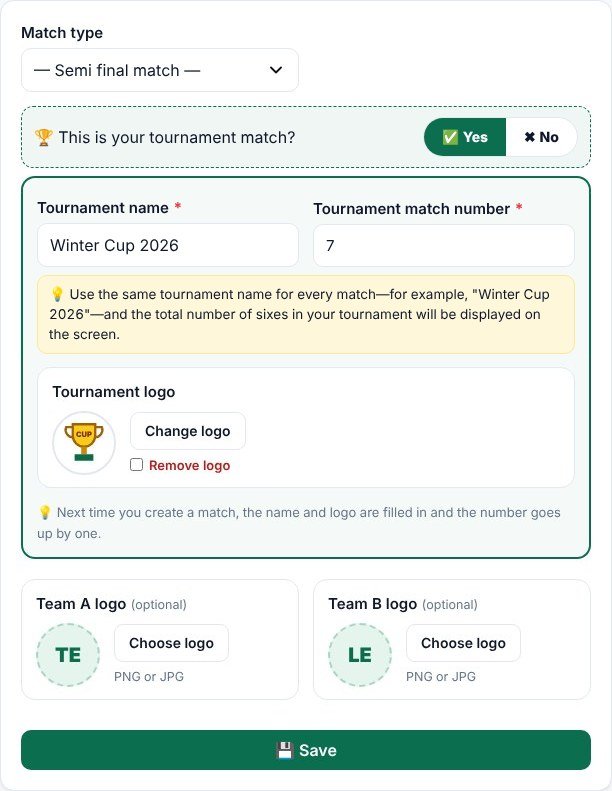
- In Create match (or Edit), above the team logos, tap “This is your tournament match?” → Yes.No (the default) keeps everything as before.
- Write the tournament name and the tournament match number, and add the tournament logo (optional).Next time the name and logo are filled in and the number goes up by one.
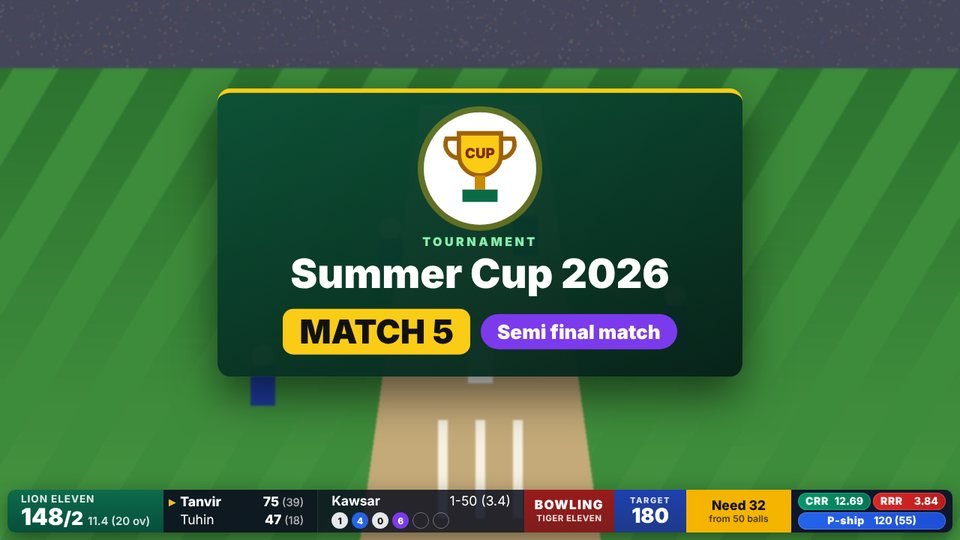
- Choose the Match type, e.g. Group match or Semi final match.It shows under the match number.
- While live, tap 🏆 Tournament Screen on the scoring page.The logo, name, MATCH number and match type show on the live video. The black scoreboard on the match page shows the tournament all the time.
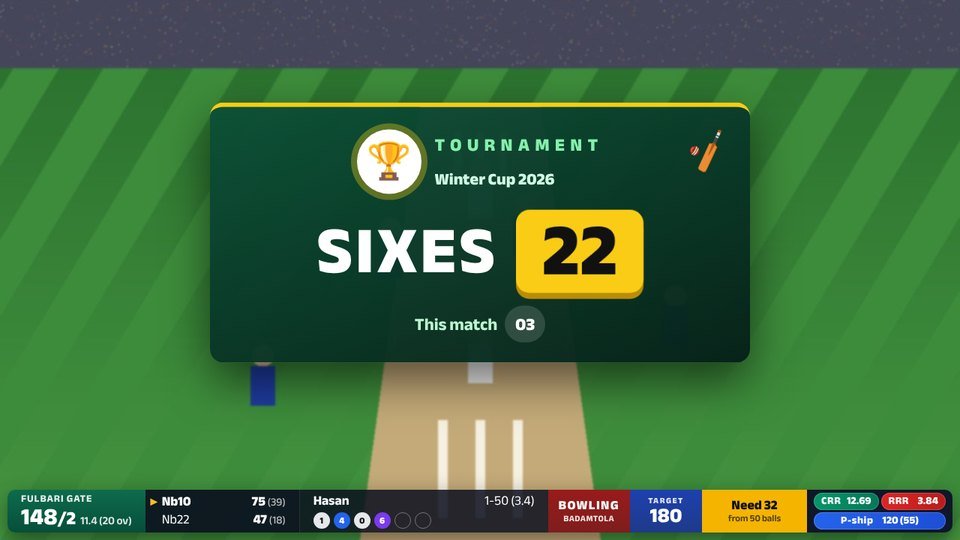
- Tap 🚀 Tournament Sixes to show the total sixes of your tournament on the live video.It counts the sixes of every match with the same tournament name, so use exactly the same name each time (e.g. Winter Cup 2026). “This match” shows the sixes of the match being played.
👥 Add another scorer
Someone else can score your match — for example when you are not at the ground or your phone battery is low.
- The other person needs an account on this site.
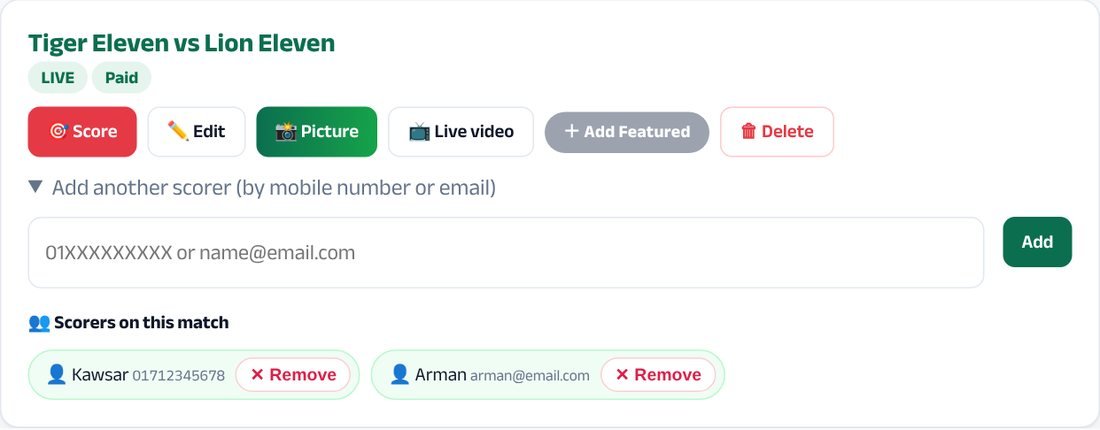
- Dashboard → My Matches → under your match open “Add another scorer”.
- Write their mobile number or email and tap Add.Bangla digits and +880 also work.
- They now see your match in their My Matches under “🤝 Matches I score” and can tap 🎯 Score.They can only score — not edit, delete or change the live video.
- After the match: you can ✕ Remove them, or they can tap “✕ Remove from my list”.

Pictures & logos
Every place where you add a picture now looks the same: a round (or tall) preview box and a “Choose” button.
- 🏏 Team A & B logos — Create / Edit match
- 🧾 Payment screenshot — Pay page (private: only the site team can see it)
- 🏆 Tournament logo — Create tournament
- 🧢 Player photo — Player for Hire
- 🛡️ Team logo — Team Challenge
- 👤 Profile photo — Profile
How to make a picture smaller
- 📱 Take a screenshot of the picture on your phone and upload the screenshot.
- 💬 Send it to yourself on WhatsApp / Messenger and save it again — it becomes smaller.
- ✂️ Crop it: a logo only needs a square around the logo.
🧢 Player for Hire & Team Challenge
Players can show they are free to play; teams can look for an opponent. Both start from Dashboard → Create Listing.
- Dashboard → Create Listing → choose Player for Hire or Team Challenge.
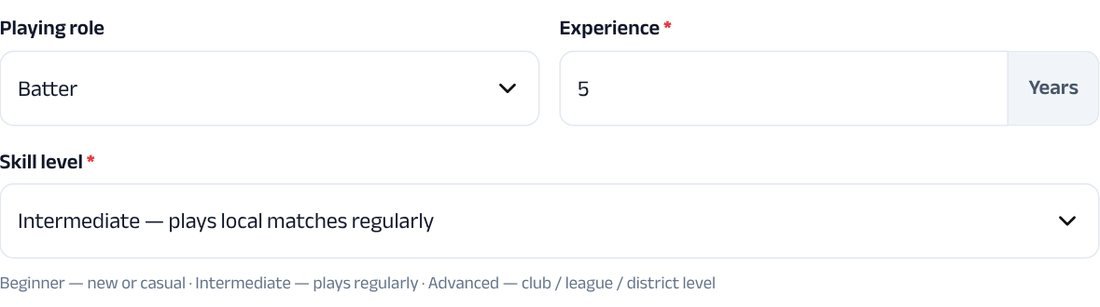
- Player for Hire: write your experience as a number — it shows as “5 Years”.
- Choose the level: ★☆☆ Beginner, ★★☆ Intermediate or ★★★ Advanced.Team Challenge asks for your team’s level, so teams of a similar level can find you.
- Add a photo or logo and submit. The listing shows after the site team approves it.
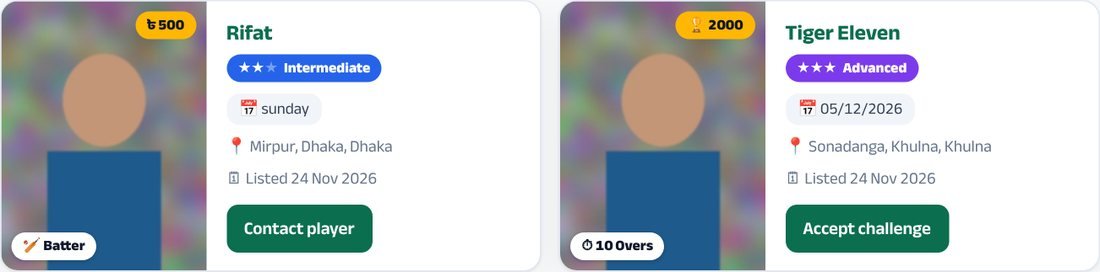
- On the card the level shows under the name; the fee is at the top, the role or overs at the bottom of the picture.
🔥 Cheer for your team
- Open a live match page.
- Tap the 🔥 button of your team — as often as you like.Up to 30 cheers per phone per minute are counted.
- The bar shows whose fans are louder.Now and then the cheer score also shows on the live video.
🤔 Who will win?
- Before the match, pick the team you think will win (or “Tie”).One vote per phone. Voting closes when the match starts.
- See what everyone thinks — the bars show the percentages.
- Share “My prediction”.A picture with your team and its logo — post it and ask friends to vote.
- After the match you see if you were right ✅
🎁 Invite & earn
- Open Dashboard → 🎁 Invite & earn and copy your link or code.
- Share it on WhatsApp, Messenger, Facebook — or post the ready picture.
- Your friend joins and gets ৳50 off the first package.
- When their first payment is approved, you get a Free Pass.Use it from “Pay now” → “Use my free pass” — no money needed.
📺 Live video with the score bar
Go live on YouTube or Facebook and your video plays on the match page with a TV-style score bar. With OBS the bar is inside the video itself. You only score on your phone — 4 / 6 / Wicket pop-ups, team logos, cheer and vote cards come by themselves.
facebook.com/share/v/…) often don’t work well. Use your Page’s original video link instead — for examplefacebook.com/tigereleven/videos/123…Open the live video on a computer and copy the address from the browser’s address bar.
❓ Questions
My picture does not upload. Why?
Pictures are made smaller by themselves. If you still see a red message, the picture is over 1 MB even after that (or your browser is very old). Take a screenshot of it or send it to yourself on WhatsApp, then try again.
Can I add team logos to an old match?
Yes. Dashboard → My Matches → ✏️ Edit, add the logos and Save.
Why is there no 📸 Picture button on my match?
It does not show for abandoned matches. During a match it shows after the first ball.
Does cheering many times make my team win?
No — cheer only shows how loud the fans are. It has nothing to do with the score.
Can I change my “Who will win?” vote?
No, one vote per phone — choose carefully.
I typed a wrong password many times and now I cannot log in.
For safety, 5 wrong tries lock that login for 15 minutes. Wait 15 minutes, or use “Forgot password” to set a new one.
Who can see my payment screenshot and card details?
Your screenshot is private — only the site team sees it to check your payment. Card and PayPal details are typed on the payment company’s own page (SSLCommerz, bKash, PayPal…) and never come to this site.
The match is tied. What happens now?
The scorer chooses: a Super Over, or keep the tie. In a Group or League match a tie means the points are shared.
Where do I see my free passes?
Dashboard → 🎁 Invite & earn → My rewards.
“Daily limit reached” — why can I not create more?
Each account can create only a few matches, tournaments, player listings or team challenges in any 24 hours. The message shows how long to wait — after that you can create again. Deleting one does not give the place back.
Still need help? Use the WhatsApp button or the contact page — we reply quickly.